


How To Secure Your WordPress Site
Written by: Hosting Coupons on July 6, 2014

WordPress can be a great platform for managing a website, but it does have downsides – one of these downsides is in the form of security. Since over 22.7% of websites (July 2014) currently use WordPress, they are a prime target for hackers.
Here are a few quick steps to make your WordPress site more secure:
1.) Use a secure password
When setting a password for a WordPress user, you should have a mix of characters. WordPress actually helps you by displaying its rating from ‘Very weak’ to ‘Strong’ depending on the complexity of the password you enter.
For example, if you chose the password ‘password’, you’d see a red image showing that your password is weak.
On the other hand, a good, strong password would be ‘Hosting19#@HgtGjYbG???!!!!’.
Since the password above might be hard to remember, you might wish to use password management software such as LastPass.
2.) Keep your WordPress install up to date
Only 17.9% of WordPress sites are using the latest version, and an incredible 20.7% are still on 3.0. This poses a major risk for those.
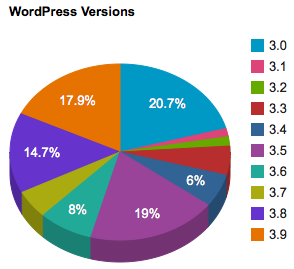
If you stay on your old WordPress version for too long, you’ll find that the upgrade eventually becomes a migration rather than a simple upgrade.

Don’t ignore the yellow bar you’ll see, since there are often important security updates.
Set up two-step log in verification
This can either be done using a WordPress security plugin (two of which I’ll talk about shortly), or a specific plugin such as .
3.) Secure your WordPress log in page
By default, the log in page for WordPress is /wp-admin.php, but you can actually change this to make it more secure. You can either do this using one of the security plugins I’ll be discussing further down the article, or with a plugin created specifically for this purpose.
4.) Allow access only from a specific IP address
If you only log in to your WordPress site from certain IP addresses (i.e. from work and home, and your ISP offers a static IP), you can block all access to your admin area, except for the specific IP addresses you choose. This can be done by adding the following block of code to your .htaccess file (which can be found in the public_html folder).
AuthUserFile ‘some htpasswd file’
AuthGroupFile /dev/null
AuthName “WordPress Admin Access Control”
AuthType Basic
order deny,allow
deny from all
Require valid-user
# whitelist ....'s IP address
allow from xx.xx.xx.xxx
# whitelist ....’s IP address
allow from xx.xx.xx.xxx
Then simply save the file, and you’ll
5.) Use SSL when logging in
Let’s say you’re in a coffee shop. If you make use of the free WiFi, other users can easily look at any unsecured Internet traffic (i.e. sites which have URLs beginning http://). Whilst this shouldn’t be a problem if you’re simply browsing the web, there’s a potential security issue.
If you log in using the standard HTTP protocol, other users on the same network will be able to see the details you are entering (such as usernames and passwords) in plain-text, with no encryption. To show an example, I’ve created a test user, called ‘testuser’, with ‘testpassword’ as the password. I then started an industry tool and started recording the web traffic, and logged in.
Here’s what a potential hacker could see – your login details:
However, if you use SSL/TLS instead (replacing http:// with https://), you will be encrypting the data, meaning it is almost impossible for anyone to intercept your traffic.
Here’s the same process again, but using SSL this time:
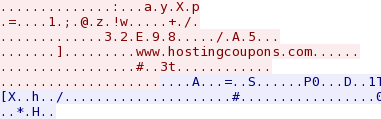
The whole webpage is encrypted, not just the log in details. You simply see an encrypted string of text which can’t be easily converted back to plain text.
To enable SSL, install one of the two WordPress security plugins below and enable the option, or if you just want the HTTPS and nothing else, install WordPress HTTPS (SSL).
WordPress security plugins
There are a number of plugins for WordPress which add additional security to your installation.
Better WP Security is a great example of this, and offers features such as 2-factor authentication and user action logging which creates an audit trail of everything each user does on the website, and also has a number of features which are coming soon, including malware scanning and GeoIP banning. Key features include:
- Brute force protection
- 2-factor authentication
- User action logging (creating an audit log of user actions)
- Away mode (make the admin area inaccessible within certain hours of the day)
- Malware scanning (coming soon)
- GeoIP banning (coming soon)
All In One WP Security is another great example, which provides an extensive number of security improvements. A few of their main features include:
- Brute force protection
- Disable right-click and text selection
- Add Captcha to WordPress login form
- Security scanner
- Backup & edit .htaccess and wp-config.php from the admin area
Secure WordPress hosting
Tighten cPanel/WHM security settings
If you have anything above standard ‘shared’ hosting, it’s likely you’ll be using WebHost Manager (WHM). WHM offers high-level options for all elements of the server including security.
A good place to start is by running a server security scan within WHM. This can be done by scrolling to the bottom of the left panel, clicking on Plugins, then clicking ConfigServer Security&Firewall (shown below).
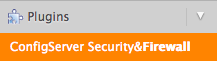
Once you’re in the area, click the top button ‘Check Server Security’, and it’ll run a quick scan.
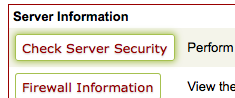
You’ll first see a breakdown of the elements, but if you scroll down, you’ll see a score at the bottom. Ideally, you should be in the green or yellow area. If you score in the red area,
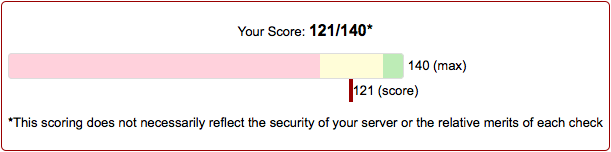
From this, you can then look at a breakdown of the elements to see which area could be improved.
Secure WordPress Hosting
WP Engine [AFFILIATE LINK] is the most secure hosting around, and offers many extra security features, such as a firewall and automatic malware scanning. Their customers include AMD, MaxCDN [AFFILIATE LINK], and SoundCloud.
You should also run a daily backup, either by using CodeGuard [AFFILIATE LINK], which will do this automatically, or manually with a plugin such as Backup Buddy.
Once you’ve made these adjustments, you might benefit from hiring a WordPress security expert to run a penetration test (aka. ‘pen test’) on your installation. This means he/she will act as a hacker and try many different methods to attempt to gain access to the admin area of your admin area.

All rights reserved | © Copyright 2026 HostingCoupons.com | SpiralMedia.co.uk


